Static themes
You can code a static theme to customize Firefox's look and feel.
You can code a static theme to customize Firefox's look and feel.
You specify static themes in a similar way to browser extensions: define the theme colors and layouts in a manifest.json file and include any theme images in the same folder. Then package the folder's contents and submit it to addons.mozilla.org for signing before distributing and installing it in Firefox.
This article:
You can't define a theme and browser extension functionality in one package, such as including a theme to complement an extension. You can, however, programmatically include a theme in an extension using the theme API. See Dynamic themes for more information.
The simplest static theme changes only the Firefox interface colors. It doesn't need any image files. To create one:
teal-colors.manifest.json with this content:{
"manifest_version": 2,
"version": "1.0",
"name": "Teal colors",
"browser_specific_settings": {
"gecko": {
"id": "teal-colors@example.com"
}
},
"theme": {
"colors": {
"frame": "#0f766e",
"tab_background_text": "#f0fdfa",
"tab_selected": "#ccfbf1",
"tab_text": "#134e4a",
"toolbar": "#ccfbf1",
"toolbar_text": "#134e4a",
"toolbar_field": "#ffffff",
"toolbar_field_text": "#134e4a"
}
},
"dark_theme": {
"colors": {
"frame": "#042f2e",
"tab_background_text": "#ccfbf1",
"tab_selected": "#115e59",
"tab_text": "#f0fdfa",
"toolbar": "#115e59",
"toolbar_text": "#f0fdfa",
"toolbar_field": "#042f2e",
"toolbar_field_text": "#f0fdfa"
}
}
}Where:
"browser_specific_settings" sets the theme's ID."theme" defines the theme that applies when Firefox uses the light color scheme."dark_theme" defines the theme that applies when Firefox uses the dark color scheme. If you omit it, Firefox uses "theme" for both color schemes."frame" is the background color of the header area, behind the tabs."tab_background_text" is the color of the text in the header area, such as the titles of unselected tabs."tab_selected" and "tab_text" are the background and text colors of the selected tab."toolbar" and "toolbar_text" are the background and text colors of the toolbars, such as the navigation toolbar."toolbar_field" and "toolbar_field_text" are the background and text colors of the address bar.about:debugging in the address bar, and select This Firefox.manifest.json file in your theme's folder.The theme stays applied until you remove it or restart Firefox. You can also use web-ext to run the theme.
With the light color scheme, the theme looks like this:

With the dark color scheme, Firefox uses the colors from "dark_theme":

For the full list of UI elements where you can set colors, see the theme key description. When your theme is ready, see Publishing themes to make it available to users.
Nova is the Firefox visual design introduced in Firefox 157. It changes how Firefox draws the interface, so it's worth checking your theme against it.
The default Firefox theme uses Nova's purple accent. Every other theme, including yours, uses the operating system's accent color for buttons and other accented controls.
Themes cannot set the accent color: your theme cannot show the purple seen in the default theme.
In earlier versions of Firefox, the UI design gave the selected tab a drop shadow that separated it from the toolbar. Nova removes that shadow. By default, the selected tab takes the toolbar's background color, which can make it hard to pick out if your theme doesn't style it.
This effect is most pronounced when a theme uses similar colors for the header and the toolbar. For example, this theme sets the two almost identically and does not set a color for selected tabs:
"colors": {
  "frame": "#0f766e",
  "toolbar": "#107a72",
  "tab_background_text": "#f0fdfa",
  "toolbar_text": "#f0fdfa",
  "toolbar_field": "#ffffff",
  "toolbar_field_text": "#134e4a"
}
The selected tab takes the toolbar color. As that color is almost identical to frame, and there's no shadow to separate them, the selected tab is hard to distinguish:

So, set the selected tab's colors explicitly with tab_selected for its background and tab_text for its label, and check that they contrast with toolbar and frame:
"colors": {
  "frame": "#0f766e",
  "toolbar": "#107a72",
  "tab_selected": "#ffffff",
  "tab_text": "#134e4a",
  "tab_background_text": "#f0fdfa",
  "toolbar_text": "#f0fdfa",
  "toolbar_field": "#ffffff",
  "toolbar_field_text": "#134e4a"
}
With the same header and toolbar colors as before, the selected tab now has its own color, so it stands out from both the header and the unselected tabs:

If your theme uses theme_frame or additional_backgrounds, check where those images display in the Nova interface. The backgrounds_area property controls whether Firefox draws them across the whole window or only in the top toolbars, as described in Using gradients and images.
The sidebar respects these color keys:
sidebar: the sidebar's background color.sidebar_text: the color of text in the sidebar. Firefox also uses this color, with sidebar, to decide whether to render the sidebar's widgets in a light or dark scheme.sidebar_border: the color of the sidebar's border.sidebar_highlight and sidebar_highlight_text: the background and text colors of the selected item in the sidebar.Several Nova theme examples are in the acorn-themes GitHub repository. Each example includes light (theme) and dark (dark_theme) variants using colors and gradients.
A theme's backgrounds can use images and, from Firefox 156, CSS gradients. You can control where Firefox draws them: across the whole browser window or only in the toolbars at the top of the window.
Anywhere a theme takes a background item, that is theme_frame and the items in additional_backgrounds, you can supply a gradient as an object. For example:
"images": {
  "additional_backgrounds": [
 { "linear-gradient": "to bottom right, #6d28d9, #db2777, #f97316" }
 ]
}
You can use linear-gradient, radial-gradient, and conic-gradient, along with their repeating versions: repeating-linear-gradient, repeating-radial-gradient, and repeating-conic-gradient.
For details on specifying images, see Working with images.
From Firefox 156, the backgrounds_area property specifies where Firefox draws your theme's background gradients and images. It takes one of these values:
"window": draws the backgrounds across the whole browser window."top_toolbars": draws the backgrounds only in the horizontal toolbars at the top of the window, such as the tab strip, navigation toolbar, and bookmarks toolbar."auto": Firefox chooses the area based on additional_backgrounds_alignment. If any background is aligned to the vertical center or bottom (for example, "center", "bottom", or "left bottom"), the backgrounds are drawn in the top toolbars. Otherwise, they're drawn across the whole window. This is the default when backgrounds_area is omitted.For example, this theme draws a gradient across the whole window:
{
  "manifest_version": 2,
  "version": "1.0",
  "name": "Sunset gradient",
  "browser_specific_settings": {
    "gecko": {
      "id": "sunset-gradient@example.com"
 }
 },
  "theme": {
    "images": {
      "additional_backgrounds": [
 { "linear-gradient": "to bottom right, #6d28d9, #db2777, #f97316" }
 ]
 },
    "properties": {
      "backgrounds_area": "window",
      "additional_backgrounds_alignment": ["right top"],
      "additional_backgrounds_tiling": ["no-repeat"],
      "additional_backgrounds_size": ["cover"]
 },
    "colors": {
      "frame": "#6d28d9",
      "tab_background_text": "#ffffff",
      "tab_selected": "#ffffff",
      "tab_text": "#4c1d95",
      "toolbar_text": "#ffffff",
      "toolbar_field": "#ffffff",
      "toolbar_field_text": "#4c1d95"
 }
 }
}
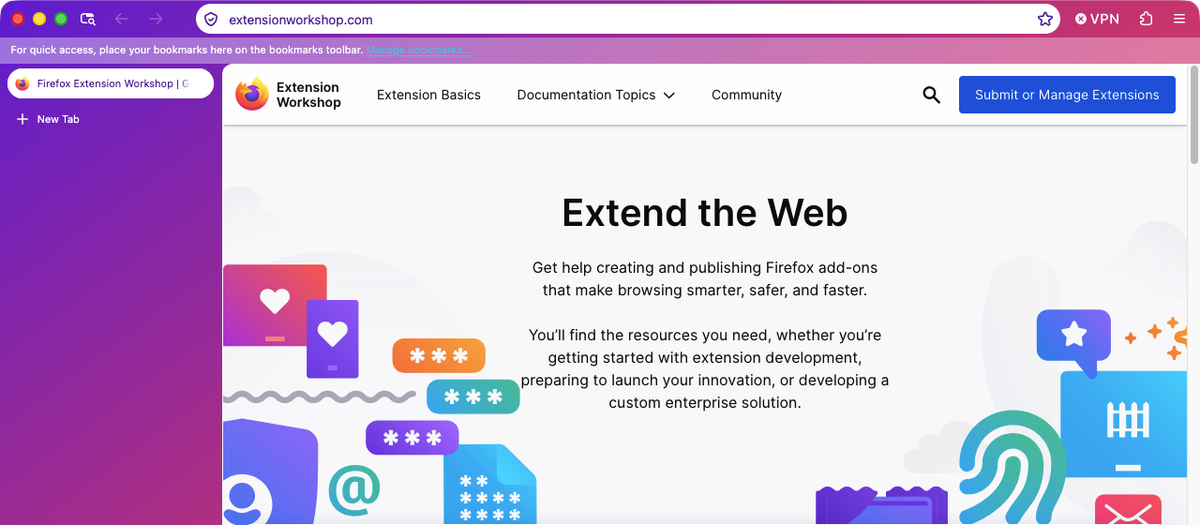
The gradient fills the whole browser window, including the areas around the web content, such as the sidebar. (These screenshots use vertical tabs, so the tabs are displayed in the sidebar.)
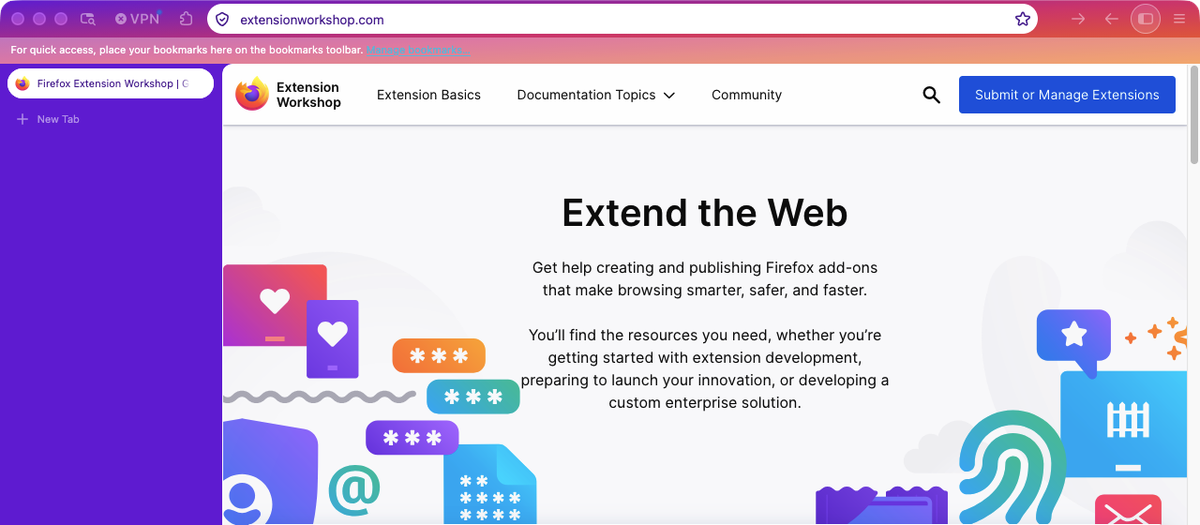
Changing the value to "top_toolbars" restricts the gradient to the toolbars at the top of the window, and the rest of the window uses the frame color:
"properties": {
  "backgrounds_area": "top_toolbars",
  "additional_backgrounds_alignment": ["right top"],
  "additional_backgrounds_tiling": ["no-repeat"],
  "additional_backgrounds_size": ["cover"]
},
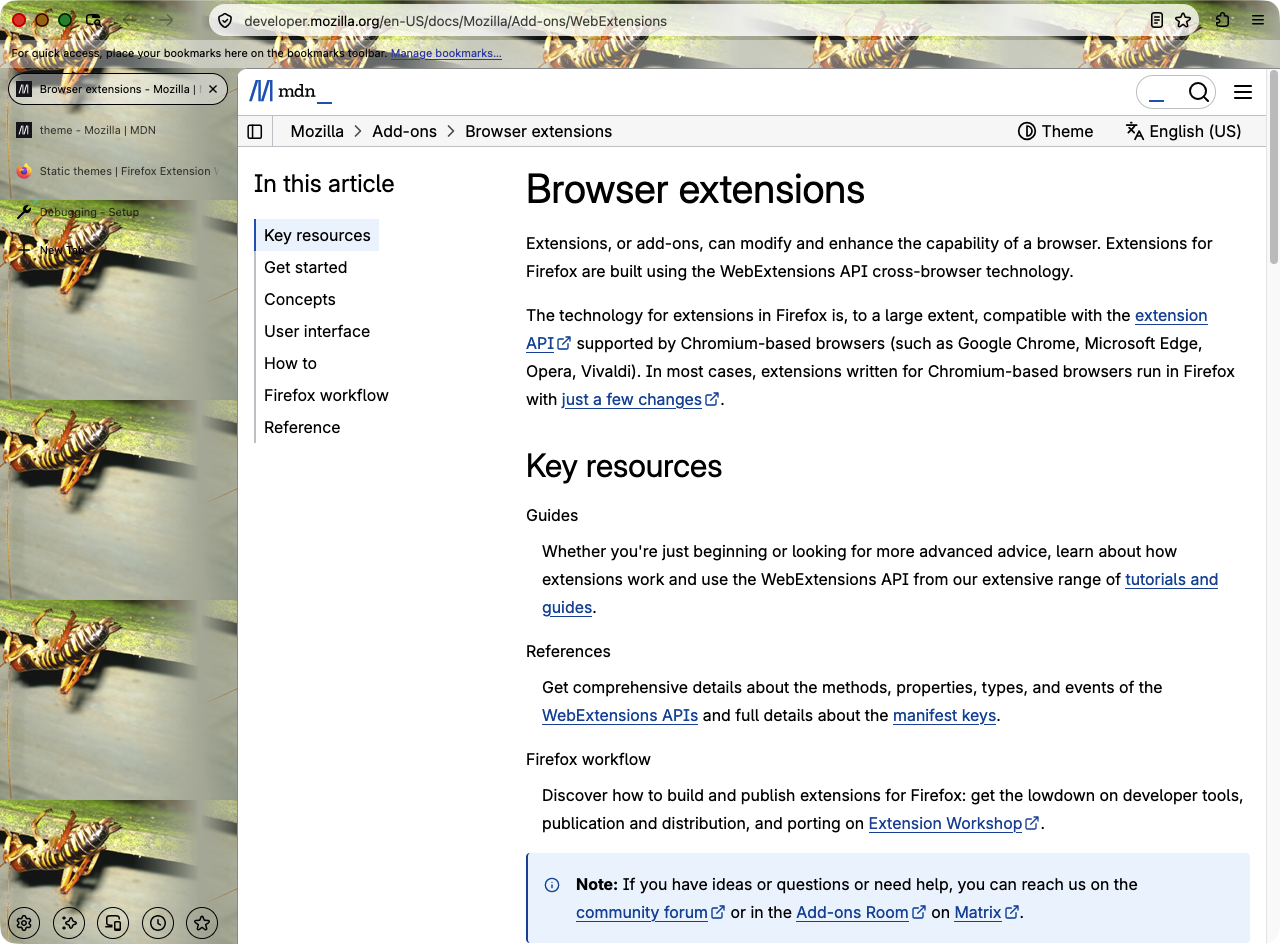
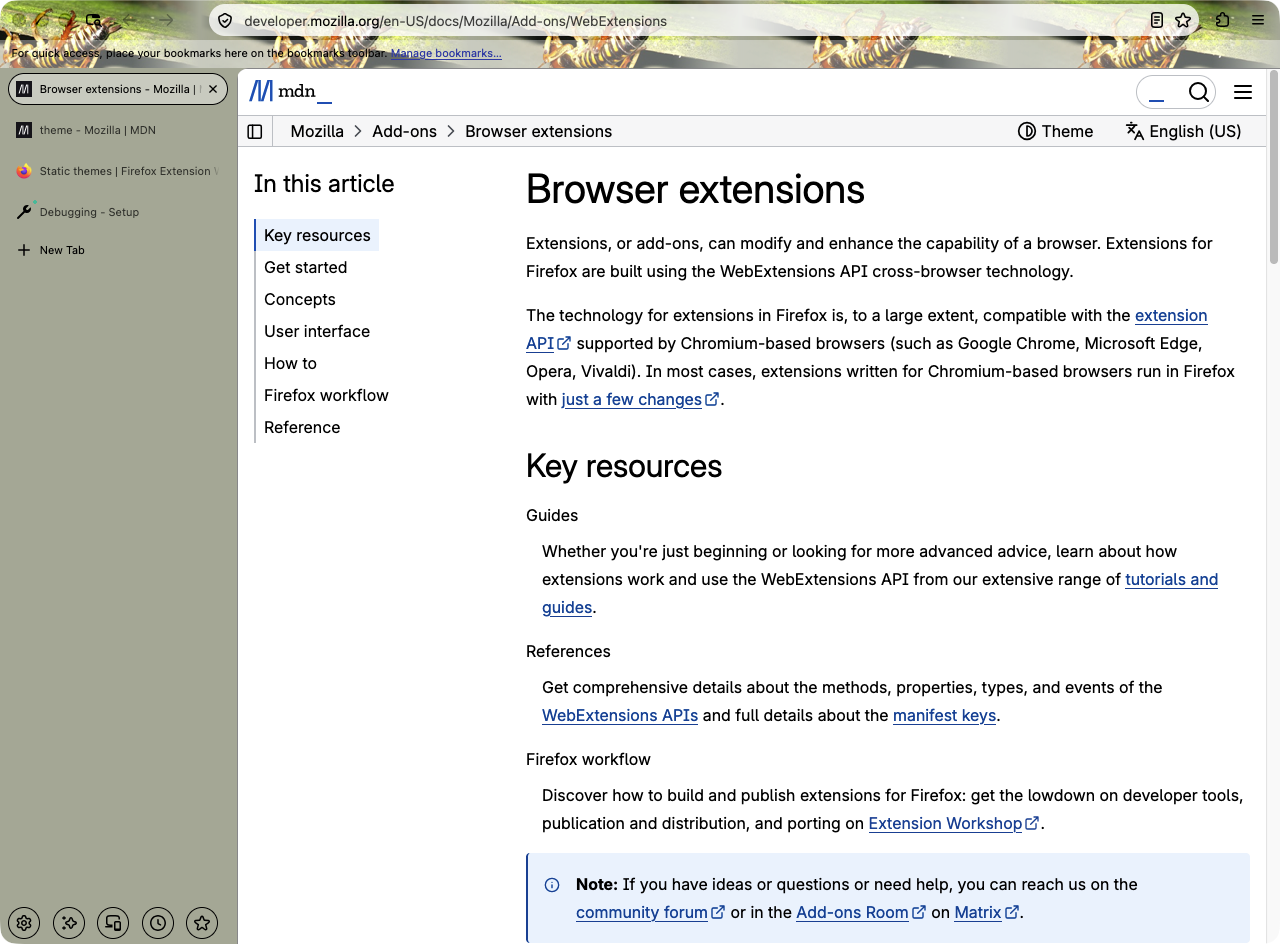
Background images follow the same rule. Here, a tiled image with backgrounds_area set to "window" covers the sidebar as well as the toolbars:
While "top_toolbars" keeps the same image in the toolbars only:
Firefox versions earlier than 156 don't support backgrounds_area. In these versions, Firefox uses the "auto" behavior. For more information, see the theme key description.
This is the basic theme with an image option, where you define:
"theme_frame", which is anchored to the top right of the header area.For example:
  "theme": {
    "images": {
      "theme_frame": "weta.png"
 },

    "colors": {
       "frame": "#adb09f",
       "tab_text": "#000"
 }
 }
Your header image should be 200 pixels deep to fill the header space. The maximum image width depends on the monitor resolution and how much of the monitor Firefox is using. Practically, this means you may need to allow up to 5120 pixels wide (for 5 K monitors).
However, rather than creating a very wide image, a better approach is to use a narrower image with a transparent left edge so that it fades to the background color. For example, you could use this image:
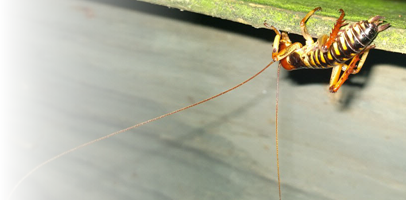
combined with a complementary background color, to create this effect in the header:

See details about this theme in the themes example weta_fade.
Obviously, you can still provide a wide image if you prefer.
You can also create themes using one or more images specified using "additional_backgrounds". You can anchor these images individually to locations within the header, with the option to tile each image.
For example, you wanted to tile a centrally justified image, such as:
to create this effect:

Here you specify the Weta image like this:
"images": {
  "theme_frame": "empty.png",
  "additional_backgrounds": [ "weta_for_tiling.png"]
},
and the images tiling with:
"properties": {
  "additional_backgrounds_alignment": [ "top" ],
  "additional_backgrounds_tiling": [ "repeat" ]
},
Full details on how to set up this theme are in the themes example weta_mirror. Full details of the alignment options can be found in the theme key description.
You can create an animated theme using an APNG image, as in the themes example animated. However, remember that rapid animations, such as the one in the example, might be too distracting for a practical theme.
You can also animate themes programmatically with dynamic themes.
This section explains how to publish your new theme and update it as you make changes,
Package your theme and submit it to addons.mozilla.org (AMO).
You can find information about how to package, sign, and distribute your theme in the Signing and distribution overview. You can choose to publicly distribute your theme on AMO or distribute it yourself.
If your static theme is hosted on addons.mozilla.org, you can upload a new version using the Developer Hub.
If you plan to upload a packaged file, increase the version number to be higher than the current version in the package's manifest.json.
You can also modify your theme using the AMO theme generator by selecting "Create a Theme" for Step 2. If you choose this option, you do not need to increase the version number in your theme's manifest.json.
Themes
Themes